Your territory, precisely.
Search within administrative boundaries, with a grid you can see. Keep businesses outside your chosen region out of your list.
City or region
London
Grid spacing
1 km
Search points1,591

Find companies by city and category, without writing code. Collect available phones, websites and public website emails. Export your business leads to Excel or CSV, or send selected companies to HubSpot and Pipedrive.
Watch the 1-minute tour5 free searches per month · up to 200 unlocked companies per search · no card needed
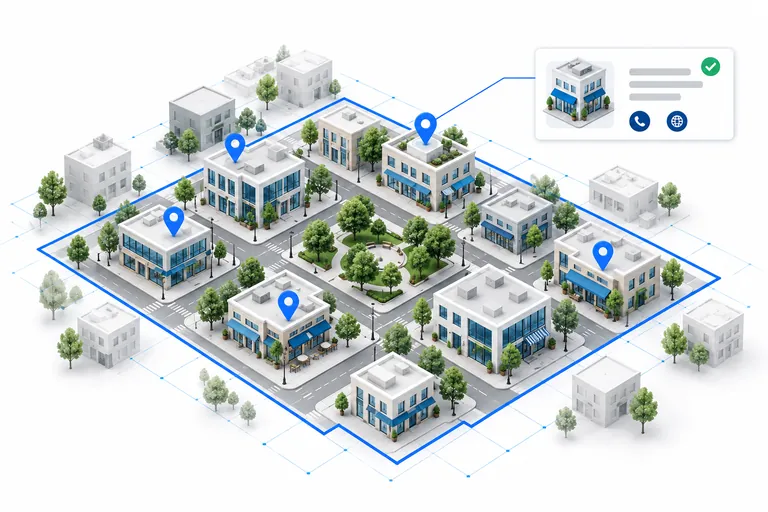
Search inside a city's administrative boundary with a visible grid. GridLead checks search points, combines duplicate listings and shows the available contacts on a map and in a table.
Search within administrative boundaries, with a grid you can see. Keep businesses outside your chosen region out of your list.
Names, categories, addresses, phones, websites and public website emails — when available. Filter companies by phone, website or email before export or CRM transfer.
2,341 of 2,876 companies match
Duplicates are merged into one list. Export your unlocked companies to Excel or CSV, or send them straight to HubSpot or Pipedrive.
Illustrative demo · sample data, no live search
Find local businesses without a website and build a list for your web services.
312 of 1,480 restaurants have no website
Choose your territory and collect companies with available phone numbers.
1,204 of 1,390 contractors list a phone number
Discover potential partners, shops and service providers in your city.
486 dental clinics found, 301 with a public email
Find a city or region and check its boundary on the map.
Start collection after checking coverage. Follow the search progress and review companies as they arrive; website email checks may finish later.
Filter companies, export Excel or CSV, or send selected records to HubSpot or Pipedrive. Follow transfer progress while it runs in the background.
Explore this interactive sample. Switch regions and grid spacing to see how a location becomes a company list.
| Company | Address | Phone | |
|---|---|---|---|
| 4.6 / 5 · 38 | |||
| 4.7 / 5 · 50 | |||
| 4.8 / 5 · 62 | — | — | |
| 4.6 / 5 · 74 | |||
| 4.7 / 5 · 86 | |||
| 4.8 / 5 · 98 | — |
Connect HubSpot or Pipedrive in Settings, select unlocked companies in your search results and send them to CRM. Transfers run in the background with progress and per-company status. GridLead tracks previous transfers to prevent repeat exports to the same connected CRM account.
CRM export guide5 searches / month
Start for free50 searches / month
Choose Starter250 searches / month
Choose Pro1,000 searches / month
Choose BusinessMonthly subscription in EUR. Secure checkout by Creem, our merchant of record; VAT is added where applicable. Cancel anytime.
You choose the territory, not just a search phrase. GridLead uses an administrative polygon and a visible grid, checks each search point and deduplicates the collected businesses. You can see exactly where the search is focused.
The grid gives you a systematic search across the selected region. Results depend on Google Maps availability and listing completeness, so we do not promise an exhaustive directory. Missing fields and partial searches are visible.
Collection can continue beyond the unlocked results limit, subject to technical limits. Additional companies are saved as locked rows and cannot be exported under your current allowance. A paid plan unlocks more companies per search.
Yes — the interactive demo uses sample data and is open to everyone. Create a free account to run a real search, save your results and export your unlocked contacts.
The results map uses accessible records with coordinates and the active filters. Missing markers do not prove that an area was skipped. Export separately offers all unlocked records or selected rows; table filters alone do not limit an all-records export.
A new search collects the listings available at that time. Source listings may be outdated or missing fields. GridLead does not independently verify phone numbers or websites.
Yes. Run a search in GridLead, then choose Export > Excel (.xlsx) or CSV. You can export contacts unlocked by your plan or selected rows. This exports business search results, not saved personal Maps lists or Google Takeout files.
Yes, when a linked business website publishes an email address. GridLead retains the source page. It does not guess addresses or verify delivery, and some companies will have no email.
HubSpot and Pipedrive. Connect an account with an access token and the required permissions in Settings, then select companies and choose Send to CRM. HubSpot supports linked email contacts; Pipedrive stores contact details in organization notes. Transfers respect your unlocked contact limits and do not start outreach automatically.
Company listings come from Google Maps; published emails come from linked business websites. Administrative boundaries use OpenStreetMap. The basemap is served by VersaTiles with OpenStreetMap and ESA WorldCover data. Check source details before outreach; public availability is not marketing consent.
Start with the businesses you need, not a spreadsheet of disconnected contact details. Keep geography, company information and public website sources together.
Choose a city or administrative area, check its boundary and enter a business category. The grid creates search points across that area. Adjust spacing and search zoom before you start; zooming the preview map is not the same as changing the search zoom.
GridLead combines duplicate listings and shows results as collection progresses. Processed passes, result pages and unique companies are different counts.
Plan and review a local business searchCollect available names, categories, addresses, phone numbers and websites from company listings. The business email finder then checks public pages on linked websites for published addresses and keeps their source pages.
No website or published email means that field may remain empty. Website checks can continue after company results appear, and published emails are not delivery-verified. Review the source and company context before treating a record as a prospect.
How Google Maps website email discovery worksThe Free plan includes 5 searches per month and up to 200 unlocked companies per search. The demo uses illustrative sample data; create an account to run your own searches.
Review unlocked contacts in the table or on the map, then export the available contacts or selected rows. Choose Excel for a filterable workbook or CSV for a downstream import. The export follows your plan's contact limits and does not unlock additional companies.
Export business data to Excel or CSVA useful extraction keeps enough context to identify a company, review its location and choose an available contact channel. Here is what to expect before you start.
GridLead collects structured company information from business search results, rather than asking you to copy individual listing cards. Names, categories and addresses help you review relevance. Available phone numbers and website links provide contact options. Coordinates and Maps links let you return to the location when checking a record.
Email discovery uses a different source: the public website linked to the company. An address found on a contact page stays attached to the business and its source page. A listing without a website, or a website that publishes only a form, may have no email result. Missing fields remain missing; they are not replaced with guessed contacts.
Begin with your task. If you need businesses across a city or administrative area, look for a tool that lets you inspect that territory before collecting. If you need a spreadsheet, check the actual export formats and columns. If email matters, check whether the product visits company websites and retains sources, rather than assuming every Maps listing contains an email address.
GridLead is a hosted, no-code workspace: choose an area and category, adjust the search settings, then review the collected records. You do not need to maintain a scraper script. Map and table views serve different purposes: the map helps assess locations, while the table helps compare records and select the contacts you want to download.
Compare a representative sample before running a larger search. Check whether the companies match your category, whether branches have been kept distinct and whether useful contact fields are present. Raw company count alone does not tell you how many records are relevant to your business.
Choose a territory and review local business leadsThe grid creates multiple search points within the selected boundary. Each search pass can process several result pages, and overlapping passes can discover the same listing. GridLead combines duplicates into a company list.
Results appear while collection runs. Check the processed passes and any incomplete-coverage warning before treating the search as finished. The companies visible on the map are those available under your plan and current filters, not necessarily every company collected.
Download unlocked contacts or selected rows as Excel (.xlsx) or CSV. Excel provides a workbook with a frozen header and column filters; CSV is useful for a destination tool that accepts contact imports. Phone values stay as text in the workbook, preserving formatting that matters when you review international numbers.
For HubSpot or Pipedrive, use the direct CRM transfer instead of importing a file. For other tools, test a few spreadsheet rows and map the destination fields before importing the full list. Check the created records: neither a file export nor a CRM transfer fills missing source data.
Read the Excel and CSV export guideCreate a free account and start building a more focused company list today.
Start for free5 free searches per month · up to 200 unlocked companies per search · no card needed