
Export Google Maps business data to Excel or CSV
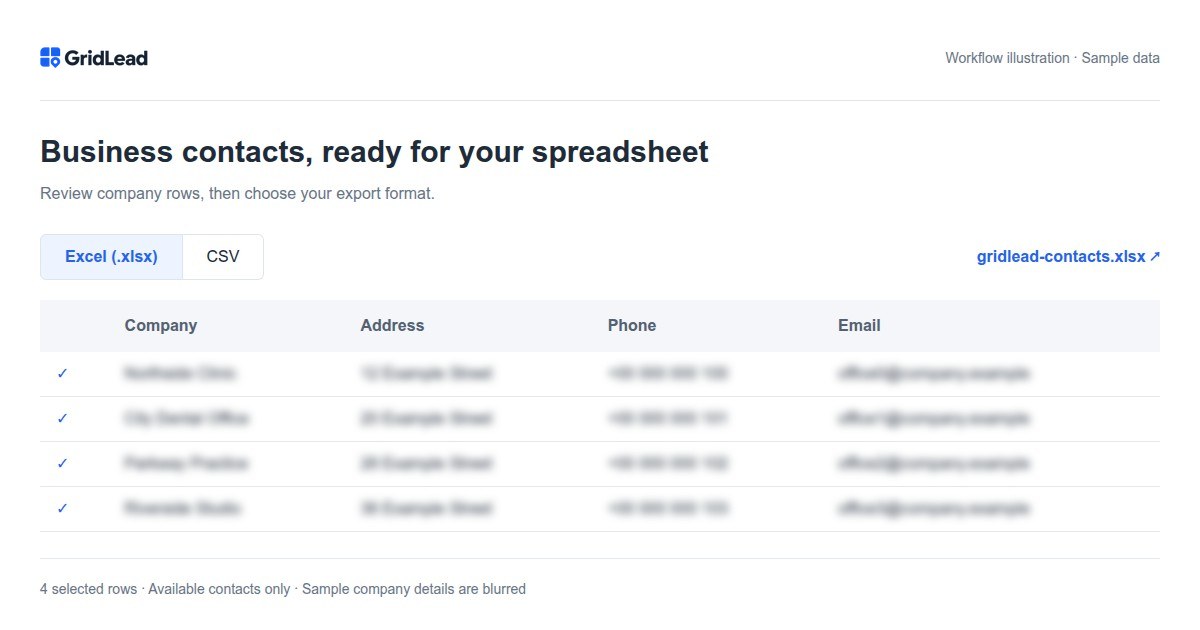
Download your unlocked contacts as a real Excel workbook (.xlsx) or a CSV file. Export all contacts available in your plan or only the rows you select. Excel exports include column filters and a frozen header row; phone numbers stay as text.
What does a Google Maps business export contain?
A business-data export turns a search by city and category into rows you can review, sort and work with. For example, a distributor looking for dental clinics needs one list of companies in its sales territory, not a collection of screenshots or copied map links. GridLead combines search results and lets you download the contacts your account can access.
Keep two workflows separate: collecting companies from search results and exporting places you previously saved in your personal Google account. GridLead handles the first workflow. It does not read your saved Maps lists, import Google Takeout archives or convert My Maps layers. A spreadsheet export also does not make missing contact information appear.
How to export Google Maps companies: step by step
Use the same search workflow as in the workspace. You do not need to copy company cards manually or write a scraper script. Prepare the territory and category first; the export is the final step, after you have reviewed what was collected.
- Select a city or administrative area from autocomplete. Check the polygon before starting, particularly when several places share the same name.
- Enter a business category, configure grid spacing and search zoom, and start the search. Watch both company collection and website email discovery; they may finish at different times.
- Review addresses and available contact fields in the table. Select specific rows if you need a smaller prospect list; do not assume an on-screen filter alone defines the export selection.
- Open Export and choose Excel (.xlsx) or CSV. Download all unlocked contacts or the selected rows, then check the file before importing it into another system.
Excel (.xlsx) or CSV: which format should you choose?
Choose XLSX when a person will work with the list in a spreadsheet. GridLead creates a real workbook with column filters and a frozen header row, so headings remain visible while you scroll. Phone values are stored as text rather than numbers. This is useful for checking addresses, comparing companies and keeping international phone prefixes intact.
Choose CSV when the destination expects a plain-text table. It carries values and headings, not spreadsheet formatting or filters. For a manual file import, map fields and review duplicates according to the destination's rules. HubSpot and Pipedrive also have direct integrations in GridLead: select companies in your results and send them without downloading a file.
Contact columns and missing business data
The export has ten columns: company name, address, categories, phones, website, coordinates, Google Maps link, Place ID, email and email source pages. Email discovery is a separate website check: an address is included only when found on a public company page. A company without a phone, website or email can still be a valid search result. Do not remove it automatically unless that field is required for your workflow.
Keep phone numbers intact when importing CSV into Excel
Phone numbers are identifiers, not quantities. Opening a CSV directly can let a spreadsheet interpret values as numbers. For Excel, import through Data > From Text/CSV and set the phone column to Text. Check the preview before loading. For an everyday spreadsheet workflow, the GridLead XLSX export avoids that extra import setup because its values are already stored as strings.
Before sharing your business contact spreadsheet
Keep the city, category and search date with your working list so another person understands where the contacts came from. Check the number of exported rows against the contacts unlocked by your plan, not the total companies found. If a search was stopped or had incomplete passes, treat the file as partial coverage. Re-export after pending email checks finish if those addresses matter to your task. Review a few records manually before using the entire list.
A useful company spreadsheet: one row, several ways to check it
Imagine a supplier preparing a list of dental practices in a selected city. A usable row should let a colleague identify the practice, understand where it operates and choose an available contact channel. A company name on its own is not enough: keep its address, category, website and Maps link alongside any phone or email. This is an example workflow, not a claim about how many practices a particular city contains.
GridLead's export includes company names, addresses, categories, phones, websites, coordinates, Google Maps links, place IDs, emails and email source pages when available. A Maps link helps a reviewer check a listing without searching for the name again. A source page explains where a published email was found. Neither field proves that a business is still trading or that an inbox accepts messages; review important records before relying on them.
Do not assume every piece of information visible in a company preview becomes an export column. In particular, rating values and review counts are not part of the current contact export. If a downstream workflow requires those fields, confirm support before choosing this export rather than filling the spreadsheet with invented values.
Prepare a Google Maps CSV export for a CRM import
A CSV is a handoff file, not an automatic CRM connection. Start with a small test import into your destination tool and inspect the resulting records before importing the full list. Map the company name to an organization field, the street address to its address field and the website to a URL field. Keep phone numbers as text so a leading plus sign or zero does not disappear.
Decide how the destination treats several contact values and existing organizations. Some tools expect one email per cell; others support multiple values or separate related contact records. Follow that tool's import rules instead of assuming that a spreadsheet representation will map correctly. Keep an untouched copy of the export, then make any necessary transformations in a working copy. Do not import a missing email as a fabricated placeholder address.
For repeat list-building, compare identifiers before appending rows. A place ID can help match the same listing, while the website and address provide a manual cross-check. One brand may have several branches sharing a domain or phone number, so removing every repeated domain can accidentally erase valid locations. Conversely, a changed business name does not necessarily mean a new company. Choose the deduplication rule that matches whether you work with branches or parent organizations.
- Export a few selected rows and confirm that the destination accepts the file format and encoding.
- Check phone formatting, column mappings and the handling of missing or multiple contact values.
- Review how existing records are matched before importing the remaining unlocked contacts.
Why your exported file may have fewer rows or emails
Separate three numbers: all companies collected, contacts unlocked by your plan, and rows chosen for this download. A selected-row export can be smaller than your accessible list, and an accessible list can be smaller than the collected total. An export does not bypass the account's contact limit. Before reporting a missing-row problem, compare the file with the exact selection and access level used at download time.
Missing emails have a different explanation. Company discovery can return a listing before website checks finish. Some companies have no website, expose only a contact form or restrict automated access. Export again after pending checks finish if the email column matters to your workflow; waiting still cannot guarantee an address for every company. The absence of a published email is not evidence that the business does not use email.
If Excel places everything in one column, use its text or CSV import workflow and check the detected separator rather than editing each row manually. If your goal is simply to review and filter contacts in Excel, choose the XLSX download instead. Keep the original file when troubleshooting so you can distinguish a problem in collection from a change made by your spreadsheet application.
From Google Maps to your CRM
Keep Excel or CSV when you need a file to review, archive or import into another tool. For HubSpot or Pipedrive, you can instead send selected unlocked companies directly from GridLead without importing a spreadsheet. Choose one route for the same batch to avoid creating duplicates through a separate file import.
Frequently asked questions
Does Excel export unlock more companies?
No. Export respects the same contact access limits as your account. A file may contain fewer rows than the total number of companies found.
Are emails taken directly from Google Maps?
No. Company discovery uses Maps results; email discovery checks linked public websites. Available emails and their source pages are included in exports, without delivery verification.
Which CRM integrations are available?
HubSpot and Pipedrive. Connect an account with an access token and the required permissions in Settings, then select companies and choose Send to CRM. HubSpot supports linked email contacts; Pipedrive stores contact details in organization notes. Transfers respect your unlocked contact limits and do not start outreach automatically.
Further reading
5 free searches per month · up to 200 unlocked companies per search · no card needed
Start for free →Try the demo →