
Local business lead finder
Build a list of local businesses one territory at a time. Pick a city or administrative area, enter a category such as dental clinics or bakeries, and GridLead searches the whole boundary on a grid, then shows the companies it finds on a map and in a table.
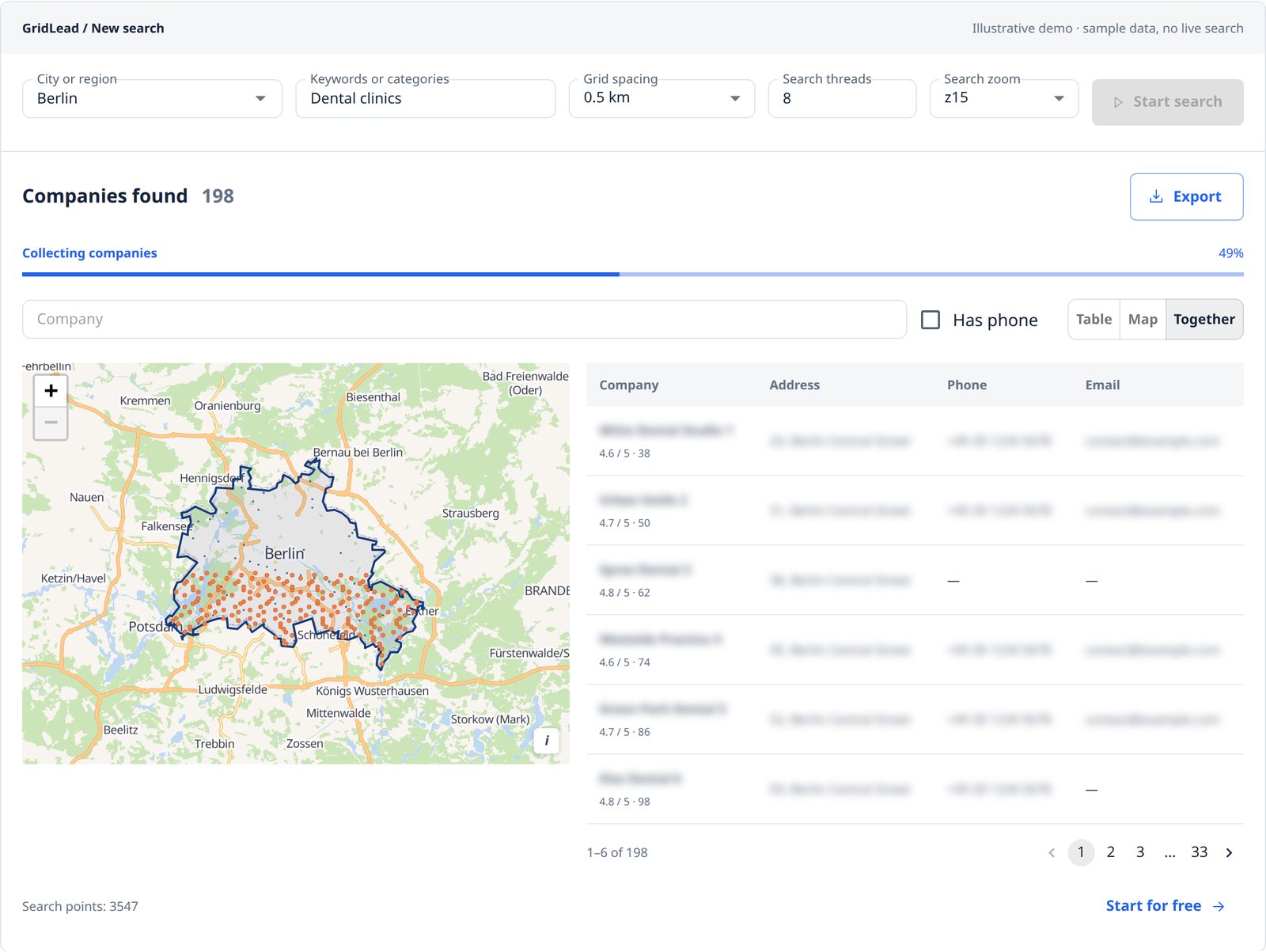
A practical example: dental clinics in a delivery territory
Imagine that your task is to prepare a list of clinics for a supplier, not to contact every business in a city. Start with the territory the supplier can actually serve and a specific clinic category. When results appear, inspect a few addresses near the boundary and review whether each listing describes a relevant business. Keep offices outside the brief separate, even if they have complete contacts. The useful outcome is a reviewable spreadsheet with company context, not a target number of leads. This is a planning example, not a claim about any city's actual company count.
Start with a local business prospecting brief
A useful local B2B lead list is not simply the largest collection of map markers. It is a set of companies that match a territory, an activity and a practical reason to review them. A distributor might look for dental clinics in a delivery area; an agency might review service businesses in a city; a local supplier might identify potential partners. Define those criteria before choosing search settings.
GridLead helps you discover public company listings and organize their available contact data. It does not know whether a business needs your service, has a budget or intends to buy. Treat search results as companies to qualify, not ready-made sales opportunities. Keeping that distinction makes the list easier to review and avoids presenting collection counts as confirmed customers.
Choose a city or administrative area, not just a map view
Use geography autocomplete to select the intended place. Read its full context: city, region and country can distinguish a large city from a small settlement with the same name. The displayed polygon represents the selected administrative boundary. Review it before starting; a recognizable city name alone is not enough to confirm the correct territory.
The map's display zoom and the search zoom have different jobs. Display zoom helps you inspect the polygon; search zoom is a setting used by the search itself. Moving or zooming the preview does not mean the entire search has been reconfigured. For a territory that extends outside the selected city, choose a suitable administrative area rather than assuming the visible outskirts are included.
Grid spacing, search zoom and parallel searches
Grid spacing controls how densely search points are placed inside the boundary. A smaller distance creates more work for the same city; it is not a promise of proportionally more unique companies. Nearby searches can return overlapping listings, which GridLead combines. Choose spacing with the size of the territory in mind, and inspect the planned number of search points before starting.
Search zoom affects the scale used for individual searches. Parallel searches determine how many passes can be active at once; more threads do not remove the need to collect pages or check websites. A search can show companies before its first pass finishes because a pass may process several result pages. Read the completed passes, processed pages and active work as separate progress signals.
From company search results to a qualified prospect list
Review relevance before contact availability. A company with an email is not useful if its category or location does not fit your brief. Compare the address and listing, inspect the website when available, then use phone, website or email filters for the contact method your task needs. Public website email discovery adds addresses only when found and saves their sources; it does not verify delivery or identify decision-makers.
- Remove records that do not match the category or territory you defined, after reviewing their context.
- Keep missing fields visible instead of assuming every business has a phone, website or email.
- Select the rows you want to work with and export them to Excel or CSV. Keep the search context with the file and review contact details before using them.
Why an empty area on the map does not mean no businesses
Map markers represent the results you can currently view, not a census of every company in the selected city. Your plan can unlock fewer contacts than the search found. Category wording, available listings, failed requests and incomplete passes can also affect the result set. Read the search status and total found alongside the accessible contact count. Do not infer market density, demand or full geographic coverage from marker distribution alone.
Choose a Google Maps extractor for a local B2B territory
A Google Maps extractor turns listings into structured business records. For local B2B prospecting, the important question is not only which contact fields it collects, but whether you can define and review the territory. A city name can refer to a municipality, a district or a wider administrative area. Use autocomplete to select the intended unit and inspect the polygon before starting so your list corresponds to the area you actually serve.
Compare tools using a short checklist: geography selection, category input, duplicate handling, progress visibility, available contact fields and usable exports. GridLead offers a grid-based search within the selected boundary, map and table review, and Excel or CSV downloads of unlocked contacts. Public website email discovery is a separate stage. These features help organize a search; they do not prove that every business in the territory has been found.
A browser extension, a hosted scraper and a custom script may all be appropriate for different users. An extension often supports work inside an existing browser session, while a script gives a developer responsibility for the collection and maintenance workflow. GridLead provides a hosted workspace without requiring you to write that script. Decide based on your task and the features you can inspect, not an untested claim that one approach is always fastest or most complete.
Diagnose a sparse map before repeating your search
A sparse results map can have several explanations, and only one is that few businesses match the category. First check whether the map represents all collected companies or only those unlocked by the plan. Then check active filters and whether relevant records have usable coordinates. A blank part of a map is not a coverage report by itself: it shows visible records, not proof that an area contains no businesses.
Next review search status. A finished search can still report incomplete passes. Compare the processed pass count with the planned count, and inspect any partial-coverage warning. Pages processed and companies collected describe different activity; one page can return several listings, and several passes can return the same company. More requests are not automatically more unique, relevant prospects.
Only after these checks should you change grid spacing, category or search zoom. A smaller spacing adds search points and work, while a different category can change relevance. Test a focused area or a related category and compare what changes before repeating a large search. Keep the old export as a reference and avoid interpreting a larger final count as better quality without inspecting the additional records.
Turn local business listings into a reviewable prospect list
Write a short brief before collecting: which type of business you serve, which area you cover and which public contact channel is useful. For example, a supplier may want independent practices inside a delivery territory, while an agency may want to review companies' existing websites. These are hypothetical selection criteria, not evidence that a listing wants to buy a service. A business record becomes a sales prospect only after you assess its relevance.
Review the business category, branch location and website before selecting records for export. A matching word in a company name is not enough to establish the right business type. Shared websites and contact numbers may belong to a group; decide whether your outreach unit is the group or an individual branch. Keep uncertain matches separate so a colleague can resolve them without searching the entire city again.
For businesses apparently missing a website, verify the listing and search context manually before making that claim. An absent website field does not prove the company has no web presence. Likewise, a published email does not establish buying intent. Keep notes in your downstream working list about why each company is relevant and which information still needs checking. GridLead's export gives you business data to review, not a guarantee of qualified leads or appointments.
From Google Maps to your CRM
Turn a territory search into a focused CRM list by checking the business category, address and available contact channels first. Select companies that fit your campaign instead of sending every map result. Transfer that shortlist to HubSpot or Pipedrive, then assign owners and follow-up tasks inside your CRM; GridLead does not automatically create deals or run campaigns.
Frequently asked questions
Does a smaller grid collect every business?
No. It creates more search points, but listings overlap and source availability varies. More requests do not guarantee complete coverage or proportionally more unique companies.
Are these contacts already qualified sales leads?
They are discovered businesses with available public contact information. You still need to review relevance, the website, contact purpose and suitability for your offer.
Why does my map show fewer companies than were found?
The map displays contacts accessible under your plan and current view. The total found can be larger. Check plan access and filters before treating an area as unsearched.
5 free searches per month · up to 200 unlocked companies per search · no card needed
Start for free →Try the demo →